We will create a Blog module for your website using Elementor Pro and the addons you choose. Our design will feature a well-structured, responsive page that showcases your articles in a grid format. Additionally, we will provide a single post template for displaying individual articles, along with the option to include a blog section on your homepage.
If you used the Elementor Post Comments Widget, you noticed that there was no Style tab to style the elements directly from the widget’s edit panel. In this article, I will show how to add an Elementor Post Comments Widget to the single post template of your website and style it.
Adding Post Comments Widget
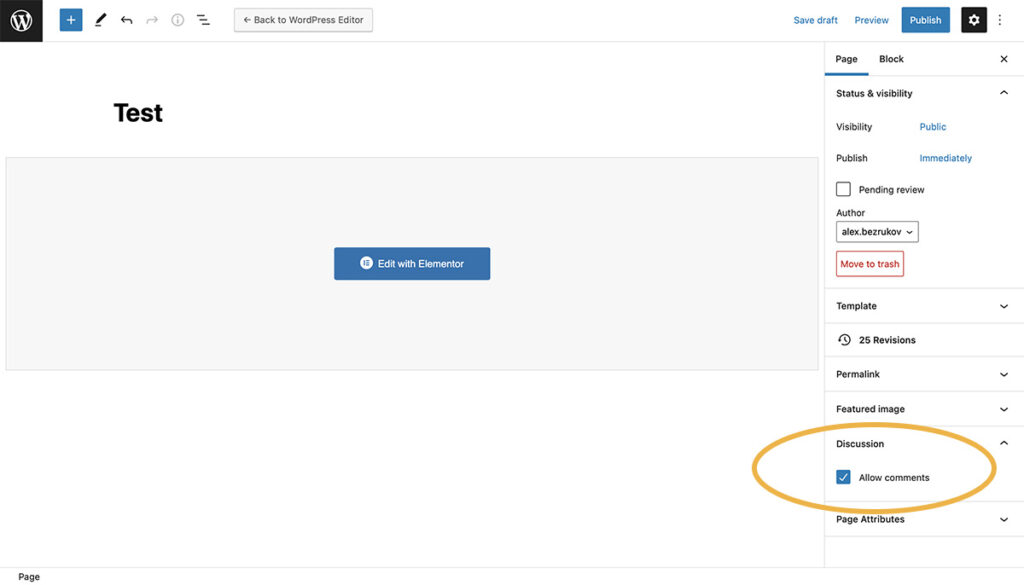
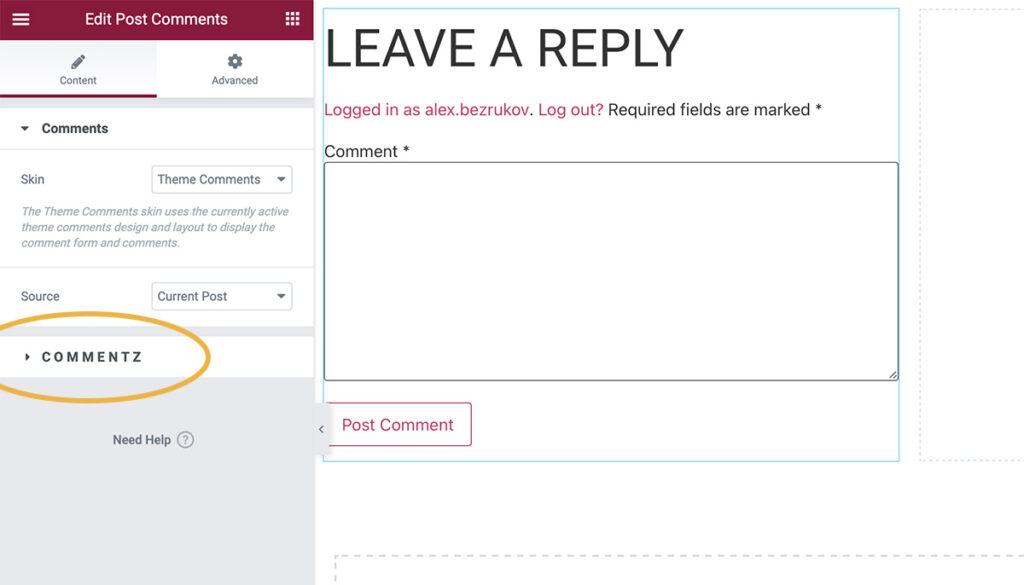
Post Comments is one of the widgets which comes with Elementor Pro. Therefore, If you have the Pro version, locate the widget in the Elementor’s widget panel and drag-and-drop it to the bottom of your template or wherever you want to position the dynamically displayed user comments. Please note, in case you get a ‘Comments are closed’ message as displayed below,
simply go to the WordPress Editor screen and enable the Allow Comments under Discussion.
Styling Widget’s Elements
Most Elementor widgets have a Style panel with settings to make the elements of the widget appear as you desire. However, the Post Comments Widget is a theme element therefore it’s controlled by the Theme Style. To set the style, first, click on the Elementor Menu in the top left corner and choose Site Settings. Secondly, under the Theme Style, click on Buttons, to style the Post Comments submit button. There are also Form Fields to style other elements of the form. Other means of styling elements of this widget include installing Elementor compatible plugin or adding a CSS code.
If you prefer to work with plugins, try Steroids for Elementor by OoohBoi which, among many other things, allows you to style post comments elements directly from the widget’s edit screen.
However, despite a wide range of settings available, it is not possible to style the form’s button and for many designers, as much as we love Steroids for Elementor, this is not ideal. For that reason, I have created a CSS code so you can change the colours of the button. Copy and paste the code (displayed below) into the Custom CSS located in the Advanced Tab of the widget’s edit panel.